In this article
If you need to give writers WordPress access without wp-admin logins being shared, you have three honest options: a separate WordPress account per writer with the lowest role that works, a review step where writers send drafts and one person publishes, or a publishing tool that holds one connection per site and gives writers access to the tool instead. Which one fits depends on how many sites you run, how many writers you have and how often people come and go.
This guide is for agencies and in-house teams publishing to several WordPress sites. It covers what each WordPress role can do, where each option breaks down, and how to offboard a writer in minutes.
Why sharing one wp-admin login goes wrong
Most agencies start with one shared Administrator login per client site. It works until it doesn't.
- You can't tell who did what. Every change shows the same user.
- Offboarding means a password change on every site the writer touched, and telling everyone else the new password.
- An Administrator can do anything. Install plugins, change themes, delete users, edit
wp-configthrough a file manager plugin. A writer needs none of that. - Client trust. Many clients now ask who has admin access to their site. "Our whole team" is not a good answer.
What each WordPress role can do
WordPress has five standard roles on a single site. The full list of capabilities is in the WordPress documentation on roles and capabilities.
| Role | Write posts | Publish posts | Edit others' posts | Upload media | Manage plugins and users |
|---|---|---|---|---|---|
| Subscriber | No | No | No | No | No |
| Contributor | Yes | No | No | No | No |
| Author | Yes | Own posts only | No | Yes | No |
| Editor | Yes | Yes | Yes | Yes | No |
| Administrator | Yes | Yes | Yes | Yes | Yes |
For writers, Contributor and Author are the roles to look at. A Contributor can write and submit for review but can't publish or upload images. An Author can publish their own posts and upload media, but can't touch anyone else's.
Option 1: one WordPress account per writer
The native answer is to create a WordPress user for each writer on each site, with the Contributor or Author role.
Where it works well:
- One to five sites, a stable team of writers.
- You want the byline on each post to be the real writer.
- Clients want to see named accounts in Users.
Where it breaks down:
- Account count. Ten writers across 20 client sites is 200 accounts to create, and 200 to remove.
- Contributors can't add images. Someone with a higher role has to add the featured image and inline images before publishing.
- Offboarding is easy to miss. When a writer leaves, you have to remember every site they had an account on.
If you go this way, keep a simple sheet of writer, site and role, and review it every quarter.
Option 2: writers draft, one person publishes
Many agencies keep writers out of WordPress entirely. Writers work in Google Docs or a shared folder, an editor reviews, and one account manager with an Editor account on each site pastes, formats and publishes.
Where it works well:
- Small teams where one person already does final checks.
- Clients who want a single named person publishing to their site.
Where it breaks down:
- Copy and paste costs time. Headings, links, images, categories, tags and SEO fields all get set again on each site.
- The publisher becomes the bottleneck. If they're out, nothing goes live.
- Formatting drifts. Pasting from a document often brings stray styles into the block editor.
Our agency content workflow for client blogs covers how to run the review step without it becoming a queue.
Option 3: give writers access to the tool, not to WordPress
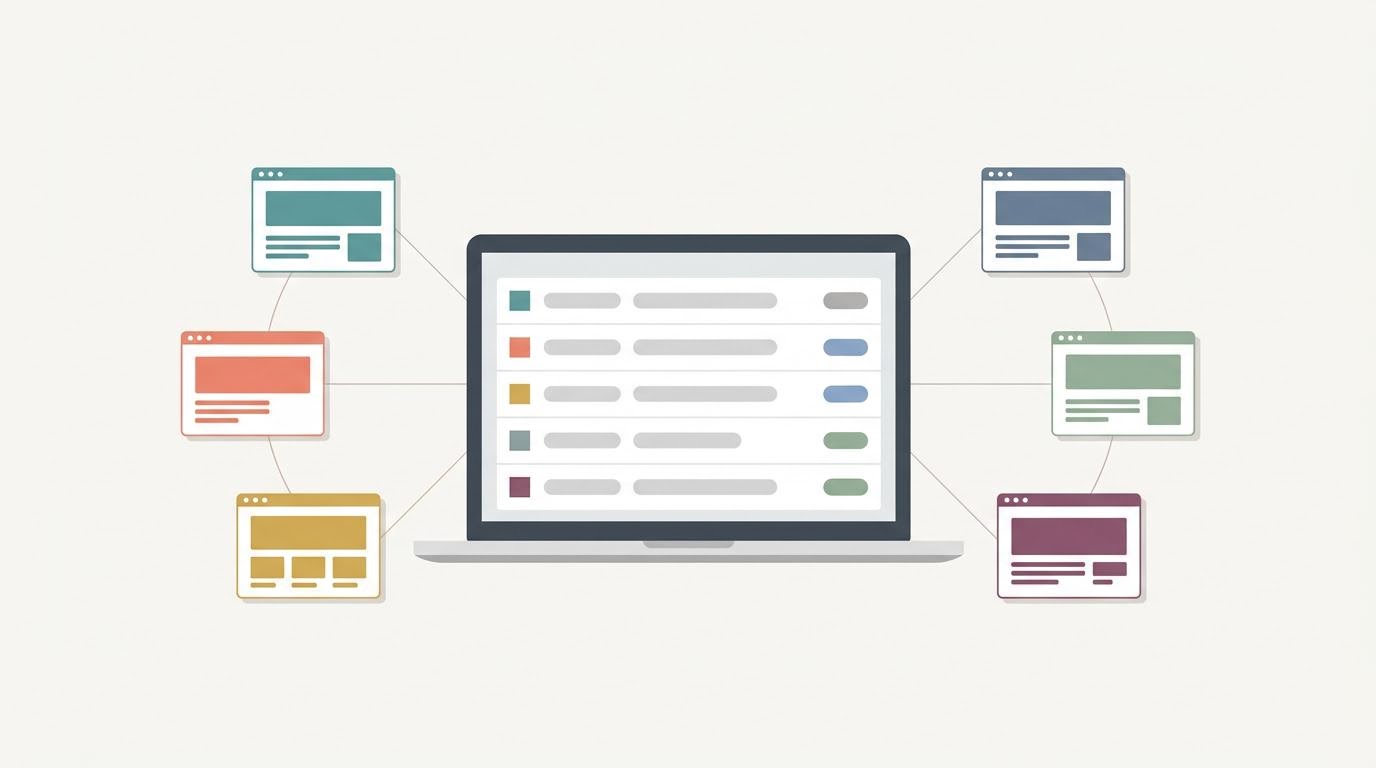
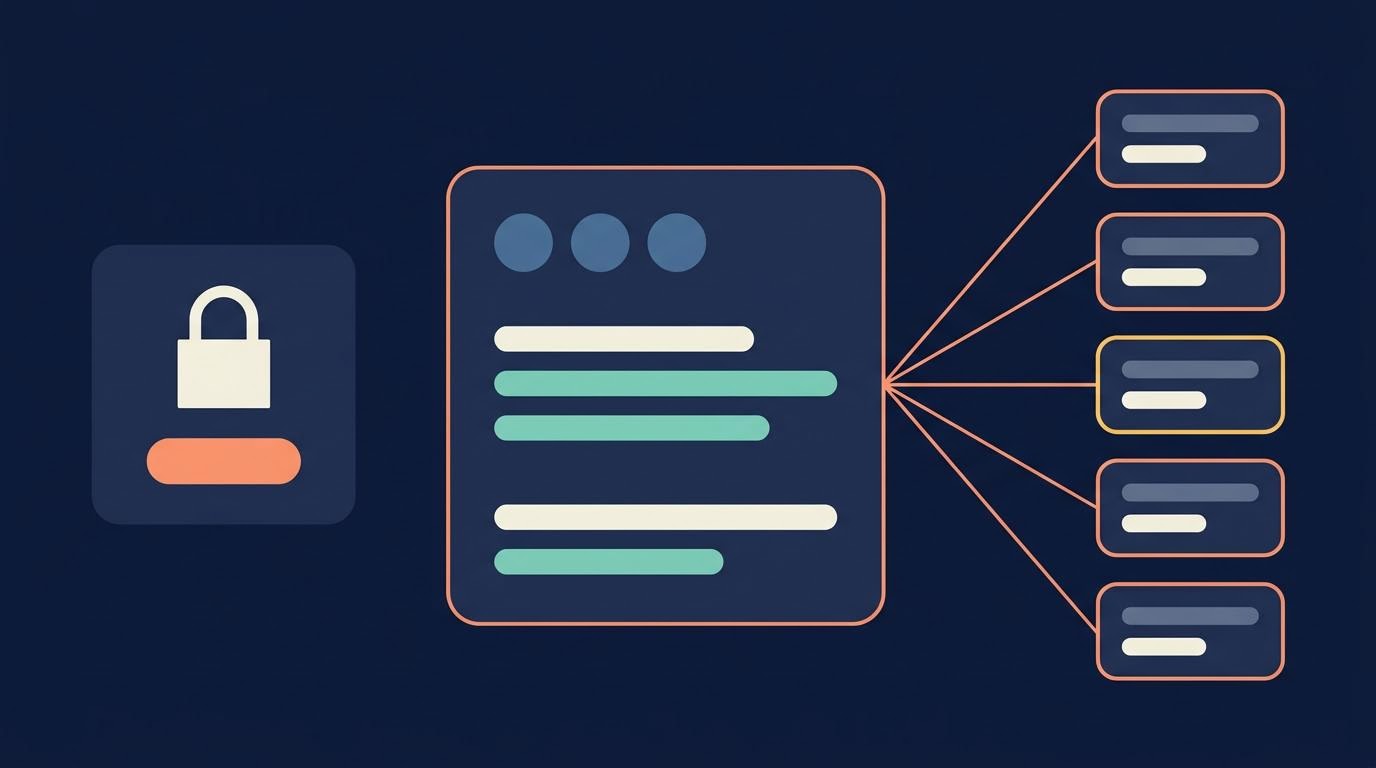
The third option is to connect each site once to a publishing tool, using one WordPress user with the Editor role and an application password. Writers get access to the tool, and never see a wp-admin login.
Application passwords are built into WordPress 5.6 and later. They're tied to one user, can be revoked on their own without changing that user's main password, and work only for API requests, not for logging in to wp-admin. Our guide to WordPress application passwords explains how they work.
How this works in Quillfleet
In Quillfleet, an owner or admin connects each WordPress site once, with the username of an Editor account and an application password. The WordPress setup guide has the steps. Site credentials are encrypted, and requests to connected sites are signed.
Writers join the workspace with the editor role. Editors can write posts, tick the sites they're publishing to in the Publish panel, and publish or update them. They can't add sites, and they can't take a live post down: on sites where the post is already live, the checkbox and the × are disabled. Only owners and admins can remove posts from sites. The publishing and scheduling guide lists every status.
Offboarding a writer is one step: remove them from the workspace. No WordPress password changes, because they never had one.
The trade-offs, honestly
This option has real limits you should weigh:
- One author per site. Posts are created as the connected WordPress user, so that user appears as the author. Quillfleet's Author field isn't used for WordPress. If real bylines matter, Option 1 suits you better.
- Quillfleet is the source of truth. Saving a post in Quillfleet overwrites the WordPress version, so edits made directly in WordPress are lost. Agree with clients that changes go through the tool.
- No Yoast or Rank Math fields yet. SEO title and description for those plugins, canonical URL and noindex are not available for WordPress.
- Existing posts stay where they are. Importing existing WordPress posts isn't available yet, and Quillfleet never overwrites a post it didn't create.
A worked example (hypothetical)
An agency in Manchester runs blogs for 14 clients on WordPress, with six freelance writers and two account managers. Writers come and go two or three times a year.
Before: Each writer had an Author account on each site they wrote for, about 50 accounts in total. When a writer left in spring, two sites still had their account six months later.
After:
- The account managers created one WordPress user per client site, named
publishing, with the Editor role. - They generated an application password called
Quillfleeton each, and connected all 14 sites. - They removed the writers' WordPress accounts, after reassigning their posts to the
publishinguser. - Writers joined the workspace as editors. Account managers stayed as admins, so only they can take posts down.
When the next writer left, offboarding took under a minute. The trade-off they accepted: bylines now show the agency, with writer credit in the post where a client wants it.
Offboarding checklist, whichever option you use
When a writer leaves, work through this the same day:
- List every site they had any access to.
- Remove or downgrade their WordPress accounts, and reassign their posts to another user.
- Revoke any application passwords they created, under Users → Profile → Application Passwords.
- Remove them from any publishing tool or shared folder.
- Check scheduled posts they set up, and read each one before it goes live.
For a wider look at running many client sites, see our guide to managing multiple WordPress sites.
Frequently asked questions
Can a Contributor upload images in WordPress?
No. The Contributor role can write and submit posts for review, but can't upload media. Someone with the Author role or higher has to add images before the post is published.
Is an application password safer than sharing the main password?
It's safer in practice. It works only for API requests, not for logging in to wp-admin, and you can revoke it without changing the user's main password. It still carries that user's permissions, so connect it to an Editor account rather than an Administrator.
Do I need a plugin to use application passwords?
No. Application passwords are part of WordPress core from version 5.6, as long as the site runs over HTTPS. Some security plugins turn them off, so check those settings if the option is missing.
What happens to published posts if we stop using a publishing tool?
Revoke the application password in WordPress and the tool can no longer reach the site. Posts already published stay on the site as normal WordPress posts. You can edit them in WordPress from then on.
To see how the Publish panel and editor role work with a real site, try the demo site.
- give writers WordPress access without wp-admin
- WordPress
- agencies
- user roles
- application passwords
- offboarding